






![Tesla Roadster Old vs. New: How the Design Changed [Photo Comparisons]](/img/containers/article_images/roadster/roadster_old_vs_new_design-2.webp/9d96ddb70e799b5c6864b648d488cb18/roadster_old_vs_new_design-2.jpg)


![Watch Tesla FSD Clear a Path for an Ambulance at a Red Light [VIDEO]](/img/containers/article_images/fsd-beta/tesla-fsd-vehicle-safety-report-hero.webp/2a97d3e5f5da6b747a32883d4e90553e/tesla-fsd-vehicle-safety-report-hero.jpg)
Self-Driving Uygulaması

Yeni Self-Driving uygulamasıyla, tek bir dokunuşla abone olun, özelliği nasıl etkinleştireceğinizi ve kullanacağınızı öğrenin ve devam eden istatistikleri görüntüleyin.
Açmak için Uygulama Başlatıcı > Self-Driving'e gidin.
Tahmini Geçiş Ücretleri

Navigasyon artık, varsa indirimli EV ücretleri dahil olmak üzere her rota için tahmini geçiş ücretlerini gösteriyor. Bu özellik Çevrimiçi Rota gerektirir. Etkinleştirmek için Kontroller > Navigasyon > Çevrimiçi Rota'ya gidin.
Hacimsel Ses Yükseltmesi

Premium Hacimsel Ses, dinleyiciyi hacimsel bir alanda ayrıntılı bir ses sahnesinin önüne yerleştirmek için gelişmiş ses yayılımı kullanır. Bu geliştirme tüm akış kaynaklarıyla kullanılabilir.
Ayarlamak için Ayarlar > Ses > Ton > Hacimsel Ses'e gidin.
Arka Ekran

Arka koltuktaki yolcular artık Tesla'nız bir rotada gezinirken arka ekranda haritaları görüntüleyebilir ve onlarla etkileşime geçebilir. Takip etmek için arka ekranda haritalar simgesine dokunun.
"Hey Grok"
Grok'u başlatmak için "Hey Grok" deyin. Etkinleştirmek için Grok > Ayarlar'a gidin. Ayrıca, "eve yaklaştığımda süt almamı hatırlat" gibi konuma dayalı hatırlatmalar da ayarlayabilirsiniz. Kapatmak için "goodbye" deyin.
Evcil Hayvan Modu

Evcil hayvanınızı seçmek ve adlandırmak için Kontroller > Ekran >Evcil Hayvan Modunu Özelleştirin'e gidin.
Boya Atölyesi

Tesla avatarınızı cam renkleri, özel kaplamalar ve plakalarla kişiselleştirin. Aracınızı benzersiz kılmak için önceden yüklenmiş birçok tasarımdan birini kullanın veya bir USB flaş bellek kullanarak kendi tasarımınızı oluşturup yükleyin. Uygulama Başlatıcı > Toybox > Boya Atölyesi’ne gidin ya da Kontroller > Yazılım’da boya veya plaka düğmesine dokunun.
Görsel Güncellemeler

Orta ekran artık Tesla'nızın daha yüksek kaliteli görüntülerini ve gelişmiş bir park sahnesi ortamı sunuyor.
Yolculuklar

Yolculuklar artık, farklı sürüşler, rotalar veya koşullardaki enerji kullanımını izlemek için birden çok yolculuk oluşturup yönetebileceğiniz Enerji uygulamasında. Uygulama Başlatıcı > Enerji > Yolculuklar'a gidin. Yolculuklar Kartı'na hızlı erişim için Medya Kartı'nda sola kaydırın.
SketchPad

Artık çıkartmaları ve emojileri destekleyen geliştirilmiş Sketchpad ile içinizdeki sanatçıyı ortaya çıkarın. Mobil uygulama üzerinden çizimlerinize erişmek ve bunları paylaşmak için kaydedin. Mobil Uygulamanın 4.55.6 sürümü veya üzeri gereklidir.
Kör Nokta Uyarı Vurgu Işıkları

Vurgu ışıkları artık, kör noktanızda bir nesne varken ve sinyal veriyorsanız veya park halindeyken yaklaşan bir nesne algılandığında kırmızı yanar. Devre dışı bırakmak için Kontroller > Işıklar > Kör Nokta Uyarı Vurgu Işıkları'na gidin.
Yeşil Işıkta Uyarı Sesi

Beklediğiniz trafik ışığı yeşil yandığında bir uyarı sesi çalacaktır. Başka bir aracın arkasında bekliyorsanız Trafiğe Duyarlı Hız Sabitleme veya Otomatik Direksiyon devrede değilse araç hareket ettiğinde uyarı sesi duyarsınız. Bu uyarı sesi yalnızca bildirimdir. Etkinleştirmek için Kontroller > Self-Driving > Yeşil Trafik Işığı Sesi'ne gidin.
Canlı Kamera Görünümü

Artık dışarıdayken Tesla'nızın iç mekanını kontrol edebilirsiniz. Etkinleştirmek için Kontroller > Güvenlik > Canlı Kamerayı Mobil Uygulama Yoluyla Görüntüle'ye gidin. Canlı Kamera uçtan uca şifrelidir ve Tesla tarafından erişilemez. Bu özellik için Premium Bağlantı ve Tesla Mobil Uygulamasının 4.55.6 sürümü veya üzeri gereklidir.
Müzik Uygulaması Kuyruğa Alma

Apple Music veya Spotify'da parçaları kuyruğa eklemek için sağa kaydırın. Apple Music'te, Favoriler'e eklemek veya Favoriler'den çıkarmak için bir parçaya basılı tutun. Spotify'da, Beğendiğiniz Şarkılar'a eklemek veya Beğendiğiniz Şarkılar'dan çıkarmak için sola kaydırın.
Otomatik Yazılım Güncellemeleri

Tesla'nız artık indirilen yazılım güncellemelerini gece otomatik olarak yükleyebilir. Etkinleştirildiğinde, Tesla'nız park halindeyken ve kullanılmıyorken güncellemeler yüklenir, böylece her zaman en son özelliklere ve iyileştirmelere sahip olursunuz.
Etkinleştirmek için Kontroller > Yazılım > Güncellemeleri Otomatik Olarak Yükle'ye gidin.
Yol Kamerası Görüntüleyici Güncellemeleri

Son Yol Kamerası görüntüleri artık 24 saate kadar uzatılabilir ve Uygulama Başlatıcı > Yol Kamerası Görüntüleyici'ye giderek herhangi bir kaydı Tesla'nıza veya telefonunuza kalıcı depolama için kaydedebilirsiniz. Telefonunuzda görüntülemeyi etkinleştirmek için Kontroller > Güvenlik'e gidin ve Mobil Uygulama Yoluyla Kamerayı Görüntüle'yi açın. Kayıtlar araçta kalır ve asla Tesla ile paylaşılmaz.
Telefonunuza indirilen kayıtlar artık hız, direksiyon simidi açısı ve Self-Driving durumu gibi ayrıntıları içeriyor. İndirmeler için Premium Bağlantı ve Mobil Uygulamanın 4.55.6 sürümü veya üzeri gereklidir.
Yol Kamerası Görüntüleyici Güncellemeleri
Uygulama Başlatıcı > Yol Kamerası Görüntüleyici'ye giderek Son Yol Kamerası görüntülerinden herhangi bir klibi Tesla'nıza veya telefonunuza kalıcı depolama için kaydedebilirsiniz. Telefonunuzda görüntülemeyi etkinleştirmek için Kontroller > Güvenlik'e gidin ve Mobil Uygulama Yoluyla Kamerayı Görüntüle'yi açın. Kayıtlar araçta kalır ve asla Tesla ile paylaşılmaz.
Telefonunuza indirilen kayıtlar artık hız, direksiyon simidi açısı ve Self-Driving durumu gibi ayrıntıları içeriyor. İndirmeler için Premium Bağlantı ve Mobil Uygulamanın 4.55.6 sürümü veya üzeri gereklidir.
Hava Durumu Haritası İyileştirmeleri

Hava durumu haritalarında artık kar ve yağmur, yağış türlerini ayırt etmeyi kolaylaştıran iyileştirilmiş renklerle gösteriliyor. Ayrıca rotanız boyunca koşulların nasıl değiştiğini görmek için son saatin hava durumu verilerini görüntüleyebilirsiniz. Bu özellik Premium Bağlantı gerektirir. Görüntülemek için haritadaki hava durumu simgesine dokunun.
Supercharger Fiyatlandırma Filtresi

Artık yalnızca Tesla Fiyatlandırmalı Supercharger'lara rota oluşturmayı seçebilirsiniz. Etkinleştirildiğinde Yol Planlayıcı, şarj fiyatlarını Tesla'nın belirlemediği veya Ücretsiz Süperşarj kredilerini kabul etmeyen konumlardan kaçınır. Bu ayar, Çevrimiçi Rota etkinken bağlantı gerektirir.
Etkinleştirmek için Kontroller > Navigasyon > Yol Planlayıcı ayarlarına gidin.
Klavye

Seçtiğiniz klavye dili, dikte için kullanılacak dili de seçecektir. Sesli komut dilini değiştirmeden klavye ve dikte dilini değiştirmek için uluslararası klavye düğmesine dokunun. Dikte etmek için klavyedeki mikrofon simgesine dokunun.
Güvenlik İyileştirmeleri

Bu güncelleme önemli güvenlik düzeltmelerini ve iyileştirmeleri içerir.
Amber Brake Lights

This update properly visualizes vehicles with amber brake lights. Some regions require turn signals to be orange/amber. Up until now, the visualization has only displayed turn signals in red, but with this update, Tesla now properly displays amber turn signals for the appropriate vehicles.
The Unreal Engine brings drastic improvements to lighting in the visualization, making the brake lights much more noticeable as they reflect on the ground.
Parental Controls Improvement
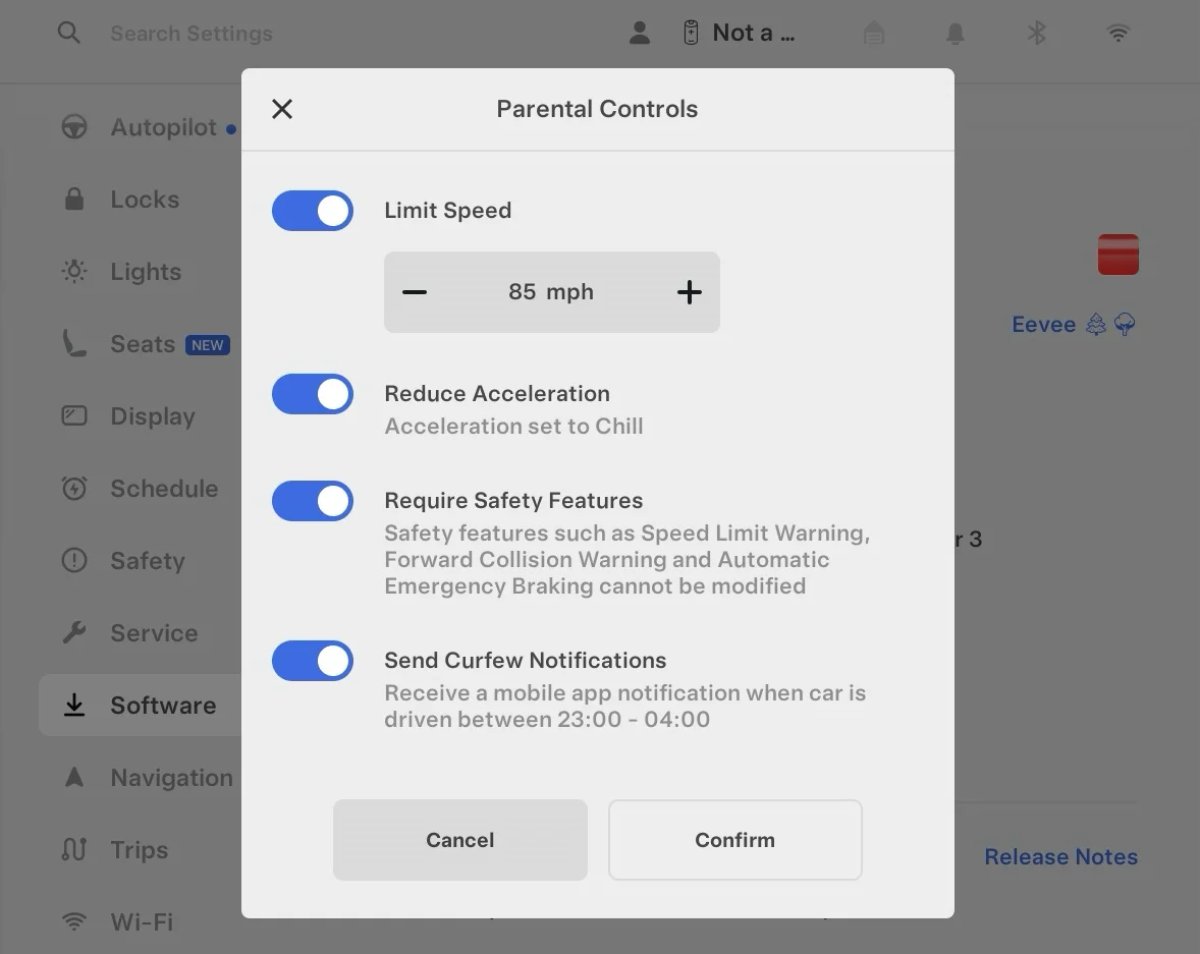
Tesla’s parental controls are designed to keep new drivers safe by limiting access to certain features. Parents can reduce the vehicle’s acceleration, limit the top speed, and prevent safety features from being turned off.
With this update, Tesla is adding another improvement to Parental Controls for Performance vehicles. Track Mode is now restricted when you enable Require Safety Features, preventing teens from manipulating the vehicle's handling, braking, and more.
Require Safety Features prevents these features from being turned off:
Automatic Emergency Braking
Obstacle-Aware Acceleration
Automatic Blind Spot Camera
Blind Spot Collision Warning Chime
Automatic 911 Call (US only)
Allow Mobile Access
Park Assist Chimes
It also prevents these settings from being changed:
Track Mode is disabled
Lane Departure Avoidance is set to Assist
Speed Limit Warning set to Chime
Speed Limit set to relative
Offset set to +5 mph (8 km/h)
Forward Collision Warning set to Early
Increased Attention Monitoring Alert

Tesla has added a new camera visibility alert with this update. What’s most interesting about this alert is that Tesla states that the poor camera visibility is resulting in increased attention monitoring.
Grok Turns Off After Inactivity

With the introduction of the "Hey Grok" wake word, Tesla has changed the way Grok behaves. Previously, once Grok was triggered, it would remain active indefinitely, staying in a constant listening state.
Now, in order to turn off accidental activations and minimize background processing, Grok will automatically dismiss itself after approximately 15 seconds of inactivity.
This behavior applies regardless of whether you triggered the assistant using the new voice wake word or the physical steering wheel button. For those who prefer to close the interface manually, you can still use natural language dismissal commands; simply saying "goodbye" or "talk to you later" will instantly close Grok.
h/t: @Deandawiz
Grok Favorites

The integrated Grok assistant now has access to your vehicle’s saved favorites. Grok can now "see" and interpret the custom labels you have assigned to your saved locations.
For example, if you have an address saved as "Kim’s parents," you can simply say, "Hey Grok, navigate to “Kim’s parents," and the system will immediately pull the correct address from your list of favorites.
h/t: @NickScheber
Advanced Software Updates

Tesla has updated the Software Update Preference setting under the Software menu.
Previously, the software update preference was a toggle between "Standard" and "Advanced." This has now changed into a simpler on/off toggle for "Advanced" updates.
By switching this to "On," you are opting in to receive the latest software releases as soon as they become available for your specific vehicle configuration and region. This could result in receiving updates with minor bugs or receiving updates more often.
If left "Off," your vehicle will wait for a wider release before installing updates.
Re-Order Trip Meters

You can reorder the new trip meters however you’d like. Simply tap and hold one to get it to jiggle, and then move it to a new location.
Additionally, you can also tap on the energy graph in the top-right corner to view a larger, more detailed version of it.
Chromium Browser Updated

Tesla has upgraded the browser in the vehicle. Tesla’s browser is based on the open-source Chromium browser, the same browser that powers Google’s Chrome browser.
The browser was updated to version 140, up from version 136.
This update to Chromium increases compatibility with modern web standards, improves WebGPU performance, and resolves known issues.
Save Recent Dashcam Videos

Tesla continues to make it easier to browse and save recent Dashcam clips. In the last update, Tesla made it easier to browse recent, non-saved Dashcam clips by listing them at the top of the Dashcam Viewer.
With this update, they’re now letting you save recent clips that are still on the USB drive, but not saved from being deleted.
Volume Icons

When adjusting the volume of an app, such as Spotify, the volume icon will now display the app's icon. While the navigation volume has always had its own icon and an independent volume setting, this change does not add app-dependent volume settings.
The same volume that’s used for Spotify will be used for YouTube and other apps. This icon simply makes it more obvious which volume is being changed.
Driver Profiles

Driver profiles are now also available in vehicle settings, rather than only in the Profiles icon in the status bar.
Users can navigate to Controls > Profiles to see the settings for all driver profiles.
Grok Settings

Grok settings are now also shown in the Audio section under Controls. These are the same settings available in the Grok app, but Tesla appears to be duplicating most of them under controls to make them easier to find.
Euro Semi Visualization

A new Autopilot/FSD visualization has been found in this update. The cab-over-engine style semi trucks often seen in Europe are now appearing in Autopilot visualizations with this update.
New 'All Apps' Icon

Tesla has updated the ‘All Apps’ icon displayed in the dock. Instead of an ellipsis inside of a rectangle, Tesla has now created a design that resembles iOS folders. The new design shows four apps inside the folder, but it’s not a static image.
The apps shown in the folder will change, presumably to show your most recent or most popular apps that aren't displayed in the dock.
Larger Dock Icons

To go along with the new ‘App Apps’ icon, Tesla has also increased the size of all icons in the dock. While the dock appears to remain the same size, the icons are now larger.
Animated Badges

Tesla models that have special badges, such as the Ludicrous badge on the Performance Model 3, are now animated in Software screen.
Upon navigating to the Software menu, the badge will play a short animation. You can also tap the badge to replay the animation.
New Creations Section

With the introduction of Photobooth, Tesla added a Photobooth section to the top level of the app that lets you view your saved photo sessions.
With the Spring Update and the update to the Sketchpad app for AMD Ryzen vehicles, Tesla is rebranding the Photobooth section to Creations, and it’ll now house Photobooth photos and sketches created in Sketchpad.
When you go into Creations, you’ll now have two tabs, one for Photobooth and one for Sketchpad, however, the features are similar. You’ll be able to view your saved creations and share them with others.
These creations are saved on your vehicle, not on Tesla’s servers, so when you open this section of the app, your vehicle will wake up and send the requested images.
Note: You’ll need vehicle update 2026.14 and an AMD Ryzen vehicle in order to see this new Creations section in the app.
Service Mode Improvements

New Service Mode Plus Authentication QR Code for Independent
Independent repairers can now quickly authenticate for Service Mode Plus by scanning a QR code displayed on the vehicle with a mobile device and logging in with their Toolbox credentials.
Models: All vehicles
Blinking DTC indicator added to the bottom banner
A Diagnostic Trouble Code (DTC) indicator has been added next to the Vehicle Identification Number (VIN) on the bottom Service Mode banner. The indicator is visible when DCs are present on the vehicle.
Models: All vehicles
Noise Recording Panel Updates (Service Mode Plus)
The Noise Recording panel now supports Active Noise Cancellation (ANC microphone recording. When ANC mode is enabled, the panel displays ANC microphone locations and extends the recording duration to 3 minutes.
Models: Model S (2021+), Model X (2021+), Cybertruck
Vehicle Functions Panel Added to Service Mode
The Vehicle Functions panel is now available on Service Mode. It shows an overview of degraded vehicle functions and their associated set alerts. Full functionality including more detailed functions, historical view and advanced controls are still only available on Service Mode Plus.
Models: Model 3, Model Y
New Bluetooth Panel
A new Bluetooth panel is available under Infotainment to support Bluetooth system diagnosis. The panel displays the status of both the main and rear Bluetooth modules (if rear Bluetooth is available on the vehicle), including connection states, signal strength with health indicators, and connected device information.
Models: Model S (2021+), Model 3, Model X (2021+), Model Y, Cybertruck

